


About the widget
The Visit History widget records every time users open records in Kommo and lets administrators view the visit history of leads, contacts, companies and customers.
With the filters you can find out:
- who opened a record;
- when the visit happened;
- which record was opened;
- which lead was at a specific pipeline stage;
- who was the responsible user for the record at the moment of the visit;
- from which IP address the user opened the card.
Important: viewing visit history and working with the widget are available to users with Kommo administrator rights.
1.Viewing the overall visit history
After installing the widget from the Kommo Marketplace, open Settings at the bottom of the left-hand menu.
The new widget appears in the list.

Open Visit History.
The widget page has filters that help you find the visits you need.
After choosing the parameters, click Search.
The results show the visit history that matches your conditions.
To search again, change the parameters and click Search once more.
To clear all parameters, click Reset.
2.Filtering by record type
In the Entity filter you can choose which Kommo records to include in the search:
- Lead;
- Contact;
- Company;
- Customer.
For example, if you choose Lead, the results will show only visits to lead cards.
This lets you quickly narrow the history down to the record type you need.

3.Searching by record ID
To find the history of a specific record, use the Entity ID field.
The ID is a unique identifier of a record in Kommo.
You can find it in the record card itself or in the browser’s address bar when the record is open.
Enter the ID in the field and click Search.
The results will show the visit history of that particular record.
Example
If you need to check who opened a specific lead:
- Open the lead in Kommo.
- Copy its ID.
- Go back to the Visit History widget.
- Choose the Lead entity.
- Enter the lead ID.
- Click Search.
You will get the visit history of the selected lead.

4.Filtering by lead stage
For leads, you can filter by pipeline stage.
This shows which visits happened while the lead was at a particular stage.
For example, you can check visits to leads at the stage:
Incoming leads → In progress
and any other stages of your pipeline.
The stage filter applies to leads.

5.Filtering by user
The User filter shows who exactly opened the record.
You can choose:
- one user;
- several users;
- all users or a specific group of employees.
It is important to tell the user apart from the responsible user.
User
The employee who actually opened the card.
Responsible user
The user assigned as responsible for the record at the moment of the visit.
For example:
Michael is the responsible user for Constantine’s lead.
If another employee opens this lead, the history records that employee’s visit, while Michael remains the responsible user at that moment.
This helps you spot cases when employees open cards they are not responsible for.
6.Visits to other users’ leads
If a user opens a lead they are not responsible for, the visit is marked with a special indicator.
A red indicator with a user icon shows that the employee opened a record that another user was responsible for at the moment of the visit.
This makes visits to other users’ leads easy to notice.
For example:
A sales rep is not the responsible user for a lead but opened its card.
In the history you can check:
- who opened the lead;
- when it happened;
- who was the responsible user;
- which stage the lead was at.
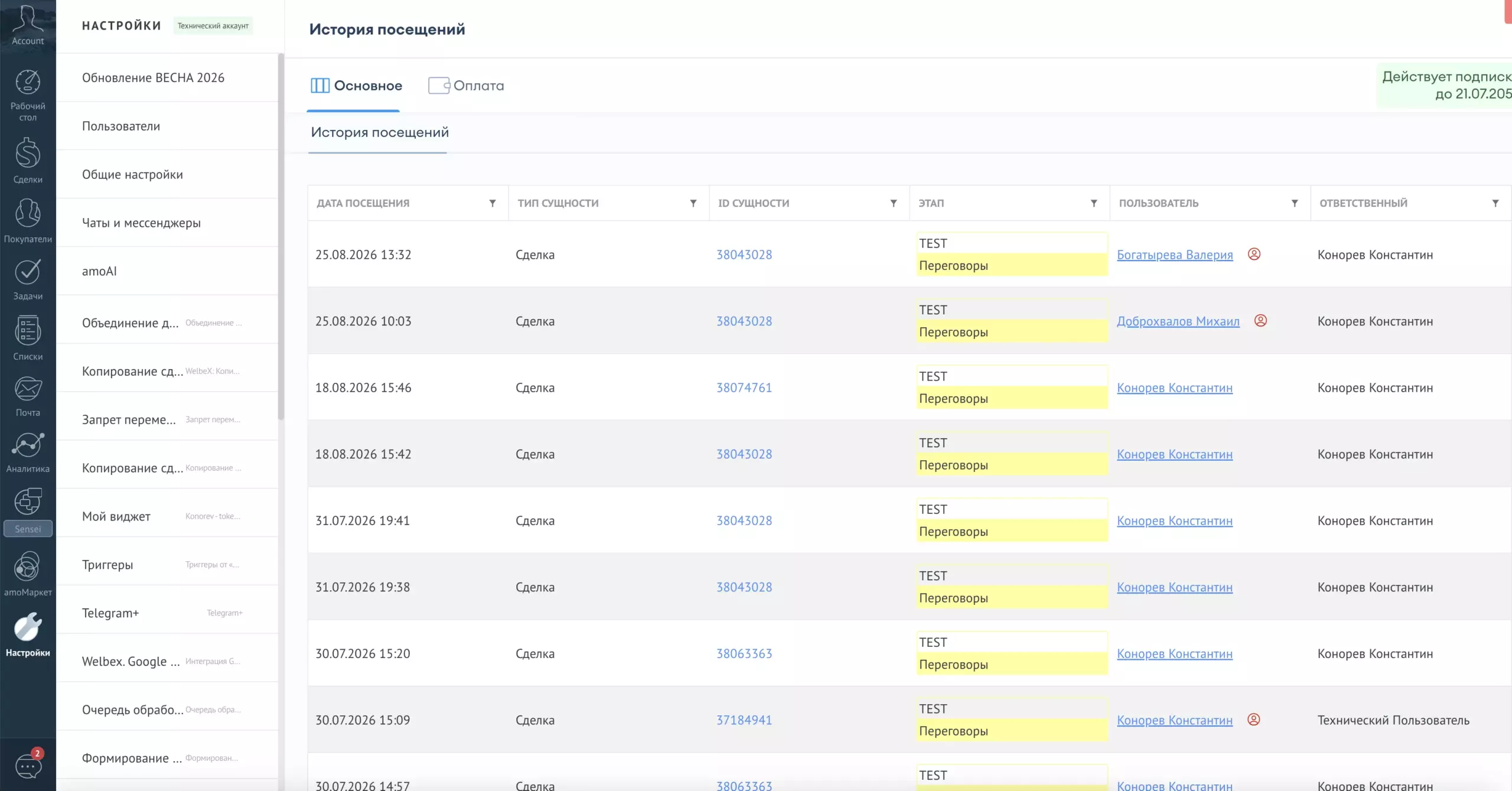
7.Viewing the IP address
For each visit you can see the IP address the user opened the record from.
To do this, choose the user or find the visit in the history.
The IP address can serve as additional information when you analyse user activity or look into disputed situations.
For example, when you need to check which connection a user accessed CRM cards from.
The IP address is an additional parameter for analysis and does not by itself determine the user’s actual location.

8.Visit history right in the record card
You can view the history not only in the general list of visits.
To do this:
- Open the record in Kommo.
- Go to the widgets area on the right.
- Find Visit History.
- Open the widget.
It shows the visit history of this particular record.
For each visit you can see:
- the user;
- the date and time;
- the lead stage at the moment of the visit;
- other available information about the visit.
This is especially convenient when you need to quickly check the history of a specific lead, contact or company without using the general search.

8.1.Use case
Suppose a sales rep says they did not see important information in a lead.
Open the lead card and go to Visit History.
You will be able to check:
- who opened the lead;
- when the visits happened;
- who was the responsible user at that moment;
- which stage the lead was at.
For example:
At 4:15 pm the sales rep opened the lead.
At 4:20 pm new information appeared in the card.
Visit history shows whether the user opened the card before that information appeared.
9.General search or history in the card?
Use the general search when you need to:
- analyse visits over a period;
- find the activity of a specific user;
- compare visits of several users;
- filter a certain type of records;
- find leads by stage;
- find a specific record by ID.
Use the history in the card when you need to quickly check:
“Who opened this particular lead / contact / company / customer, and when?”
Both ways use the same visit history and give you information about visits to records.
10.Resetting filters
To remove the search parameters you have set, click Reset.
After that you can run a new search with different parameters.
11.Recommended search order
To find a specific visit, follow this order:
- Choose the record type.
- Set the period.
- Enter the record ID, if needed.
- Choose the user.
- Choose the responsible user, if needed.
- For leads, also set the stage.
- Click Search.
The more parameters you set, the more precise the result.

Important
User in the filters is the employee who actually opened the record.
Responsible user is the employee assigned as responsible for the record at the moment of the visit.
These can differ — and that is exactly what lets you detect employees visiting other users’ leads and other records.